
| Central - USER | Central - MOBILE |
| Central - EXCEL | Azure - MICROSOFT USER |
| Following Up With Requester - HUBSPOT |
 Tip: Find all of the links to OpLYNX Central Environments here
Central User
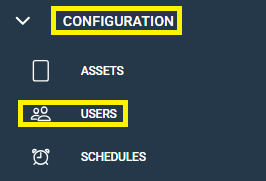
Click on the CONFIGURATION button on the left-hand panel, then click USERS.
Click the + button in the bottom-right corner to add a new user
Username* - FirstnameLastname (unless specified otherwise)
Password* - Companyname.20199 (ex. Cnrl.20199)
Supervisor* - User's company supervisor - you will typically us the person who made the request
Current Role* - This will be the run they are associated with, or the most frequently used run
Company* - Name of company request came from (unless specified as Vendor)
User Groups* - The majority of users will be Operators unless otherwise specified.
Role(s) - Optional field to limit the runs available to a user
Once complete, click the  icon in the top-right corner to create/save the user.
Mobile Asset (Central)
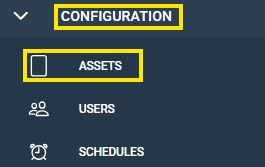
Click on the CONFIGURATION button on the left-hand panel, then click ASSETS.
Click the + button in the bottom-right corner to add a new Mobile Asset
Asset Name* - User's company email
Description - User's name and the type of asset (ie. First Name Last Name's Phone)
Asset Type* - In this case, use Mobile
Asset GPS Type* - Select Location Services
Asset Software Type* - OpLYNX Mobile
Version* - Always use the most recent version
Once complete, click the icon in the top-right corner to create/save the Mobile Asset.
Excel Asset (Central)
Click on the CONFIGURATION button on the left-hand panel, then click ASSETS.
Click the + button in the bottom-right corner to add a new Excel Asset
Asset Name* - Excel.Username (ex. Excel.JustinBelmont)
Description - User's name and the type of asset (ie. First Name Last Name's Excel Profile)
Asset Type* - In this case, use Excel
Asset GPS Type* - Select Location Services
Asset Software Type* - OpLYNX Excel
Version* - Always use the most recent version
Once complete, click the icon in the top-right corner to create/save the Excel Asset.
Azure/Intune (Microsoft) Account
Go to the Azure/Intune website and login using the credentials provided: (FirstnameLastname@cnrl.oplynx.ca)
Select Users -> All Users -> + New User
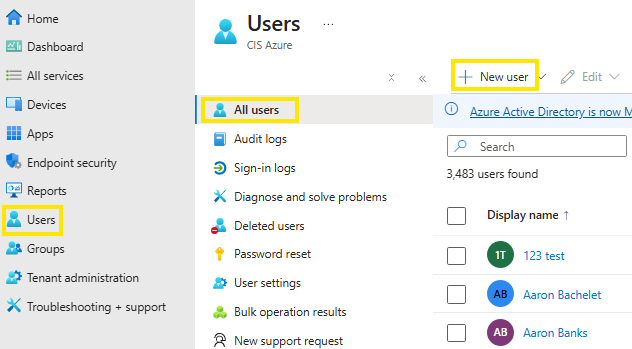
Username - FirstnameLastname@domain - Make sure you have the correct domain selected!
Password - Uncheck "Auto-generate password", set password as Company in CAPS followed by .2019 as below: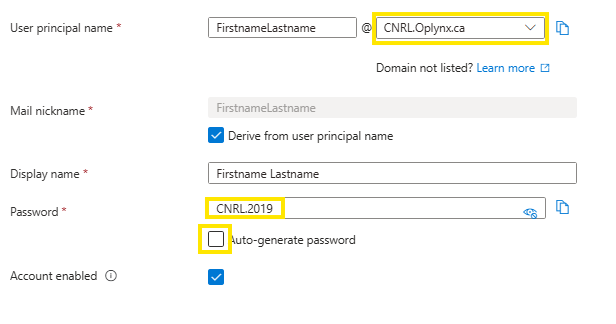
Once complete, click  in the bottom-left corner
Responding to Client in Hubspot Ticket
Tip: For more information on ticket creation and management in Hubspot, please click here.
Open the ticket and reply to the requester's email or create a new email in the ticket if requested by phone.
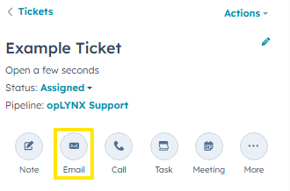
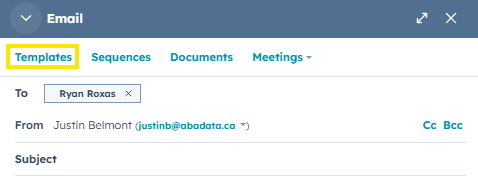
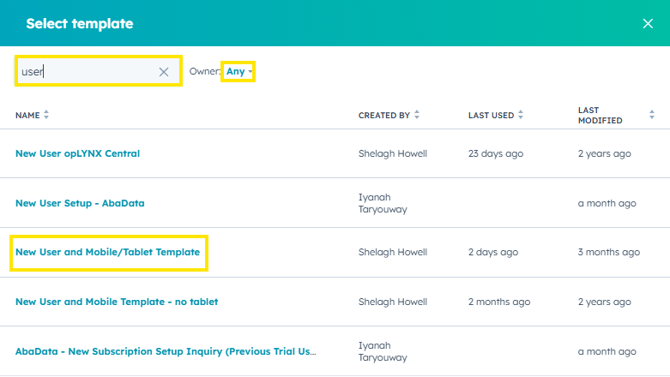
In the email, click Templates. Make sure Owner is set to Any. You will most commonly use New User and Mobile/Tablet Template.
Adjust all of the placeholders in the email to reflect the information around the user's credentials.