
Key items:
- Teamviewer
- Citrix Installation File.
- Installation file found in file package.
- Citrix Shortcut for desktop - https://access2.cnrl.com/
Key Logins:
When you connect to the clients tablet and start the installation you will be asked to login to the local admin account, it will be one of these.
Admin Account #1:
- Username: imaging
- Password: Asdfbnm,
Admin Account #2:
- Username: oplynx
- Password: infoH@WK2019!
Once you have the file package downloaded to your computer and teamviewer installed you are ready to connect to a clients tablet and fix their Citrix!
Procedure
- Launch TeamViewer and connect to the client's tablet.
- This is done by inputting their UserID in the search bar at the top-right and clicking Connect
- After searching for the tablet, you will be prompted to enter the password
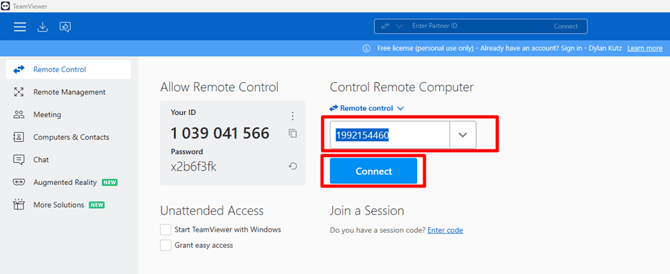
- Once connected, copy over the Citrix install file from your desktop to the client's tablet in c:/temp folder
- If the temp folder does not exist, create a folder on the c: drive called Temp and place the Citrix install file there
- Next, go to Settings and Apps and uninstall the Citrix Receiver App on the tablet
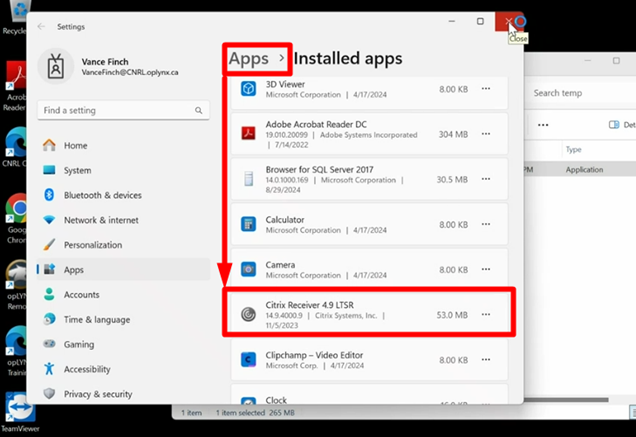
- Once done, trigger a restart of the tablet
- Once the restart is complete, Teamview back into the tablet.
- Install the new Citrix you placed in the c:/Temp folder
Adjust Citrix Settings
- Right-click on the Citrix icon

- Go to Advanced Preferences
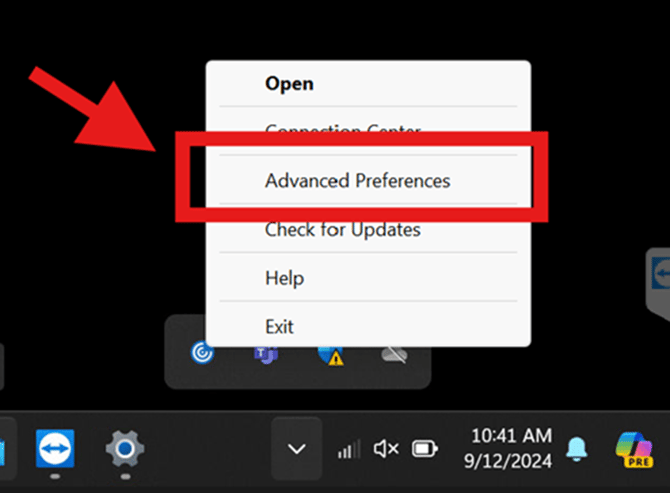
- Select High DPI and click Yes on Scale the session for high resolution