![AbaData Logo-1.png]](https://support.oplynx.com/hs-fs/hubfs/AbaData%20Logo-1.png?height=40&name=AbaData%20Logo-1.png)
 Tip:
Tip:
To view and export well information based on search criteria via Global Reports.
To view and export well information for multiple wells selected on the map:
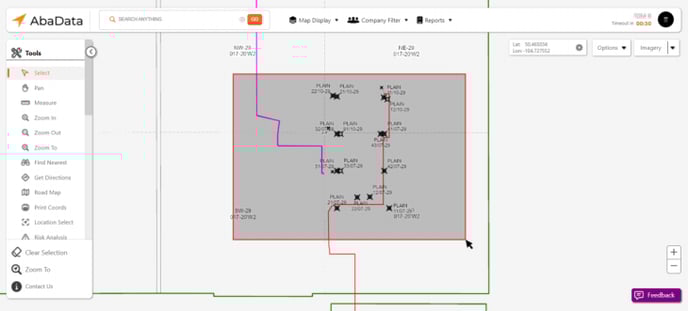
- Navigate to the area the wells are located on the map.
- Select the Select tool from the Tools menu
- Left click and drag over the wells
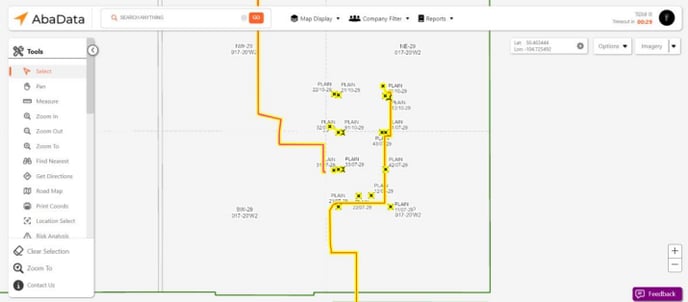
- All of the wells in the selected area will be highlighted yellow (this indicates the wells are selected).
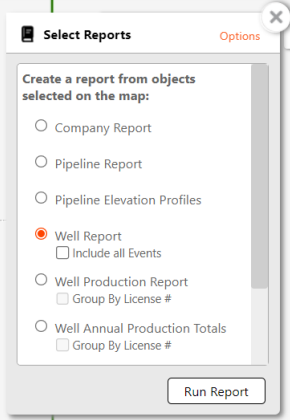
- Go to Reports > Select

- The Select Reports window will be displayed. Select the Well Report checkbox and click Run Report.
- The report will be displayed in a new tab.
Tip:
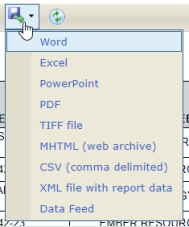
To download and save the report, select a format from the Export drop-down list.
To clear the current selection, click the Clear Selection button in the left-hand menu.
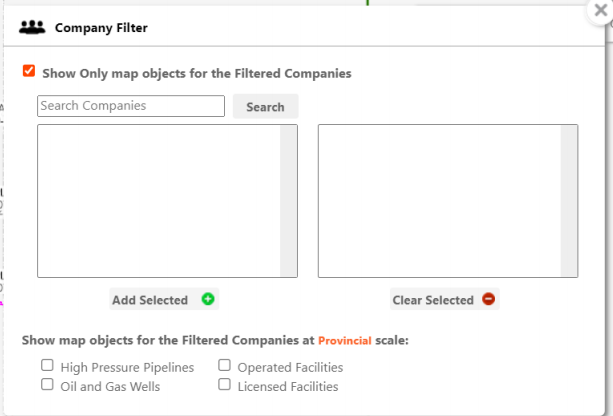
To filter wells by company, use the Company Filter menu.
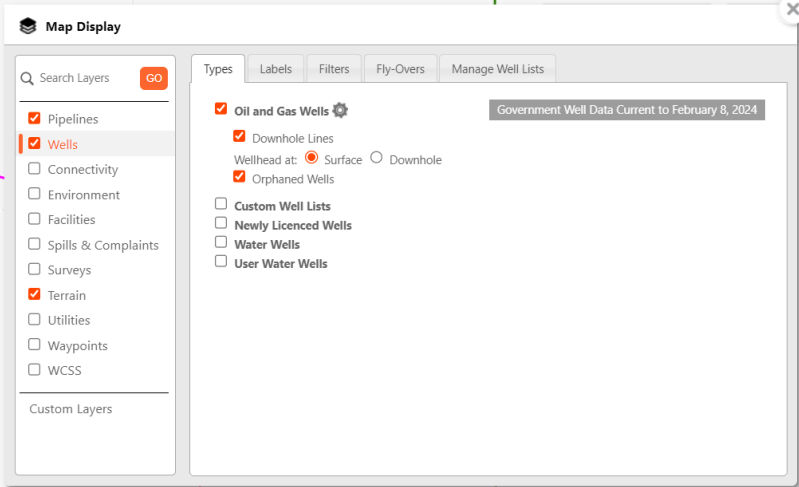
Wells can also be filtered from the Wells layer in the Map Display menu.