 Note:
Note:
A map must be saved before it can be shared or edited. Refer to Save Map.
Share/Edit/Delete Maps
To share a saved map with another AbaData user, or edit, or delete a saved map:
- Go to the User Menu and select Manage Maps
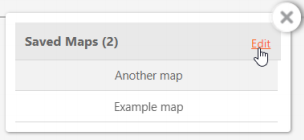
- The Saved Maps window will be displayed. Click Edit.
- Click the
 Edit icon to rename a map or make it your default map.
 - Click the
 Delete icon to delete a map.
- Click the
 Share With icon to the left of the map you want to share.
 - The Shared With window will be displayed, listing all AbaData users the map is currently shared with.
Note:
This window will be empty the first time you share the selected map.
- Click Add Shares and search for Contacts by Company, First Name, or Last Name. Select the user(s) from the list and click Select to share the saved map with them.
Export Map
To export or print the current map:
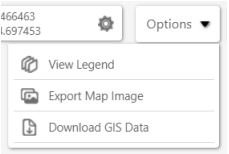
- Go to Options and select Export Map Image button at the top of the map display.
- The Export Map menu will be displayed.
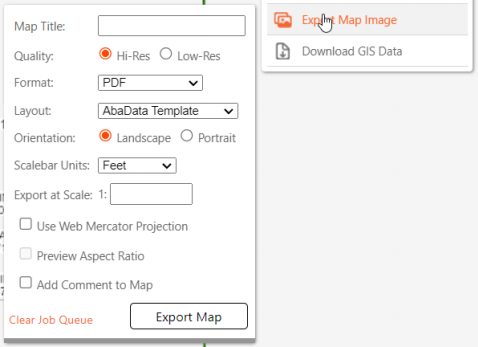
- Enter a name for the map in the Map Title Field.
- Select the Format from the drop-down menu.
- Select any of the other options as required.
- Click Export Map.
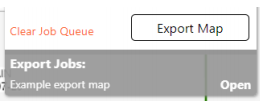
- Once generated, the map will be listed in Export Jobs below the Export Map menu. Click Open to view, save or print the map.