
 Note:
Note:To save the current map (including the layers displayed, filters, location, and customizations):
- Go to the User Menu and select Save Map.
- The Save Map window will be displayed
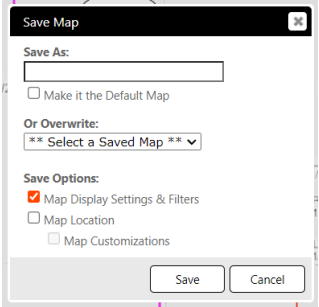
- Enter a name for the map in the Save As field or select an existing map to overwrite from the Or Overwrite drop.
- To make this the default map to be displayed each time you login to AbaData Maps, select the Make it the Default Map checkbox.
- Select the Save Options to define which elements of the current map to save:
- Map Display Settings & Filters: this saves the surface layers and filters selected.
- Map Location: this saves the current location (position and zoom).
- Map Customizations: this saves drawings, labels, and buffers you have added.
- Map Customizations: this saves drawings, labels, and buffers you have added.
- Click Save. This map will be saved to your saved maps.
Load Map
To load a saved map:
- Go to the User Menu and select Manage Maps.
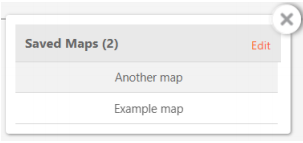
- The Saved Maps window will be displayed. Select a map from the list.
- The Confirm Load window will be displayed. Press Yes to confirm and load the selected map.
! Warning:
Any unsaved changes to the current map display will be lost.