![AbaData Logo-1.png]](https://support.oplynx.com/hs-fs/hubfs/AbaData%20Logo-1.png?height=40&name=AbaData%20Logo-1.png)
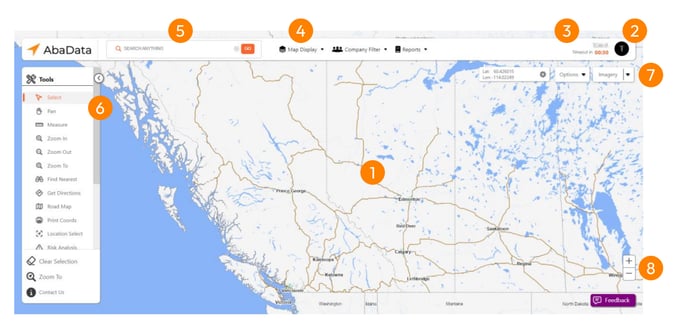
|
|
|
|
|
|
|
|
 Map
Map


 Left-Hand Menu
 Zoom
Zoom
Session Timeout
For security, each session will automatically timeout after 30 minutes of inactivity. To extend the timer and stay logged in for longer:
 Note:
Note:
Extending the timer will apply to the current session only.
- Click the Timer.
- The Extend Timeout Timer box will be displayed. Adjust the timer as required.
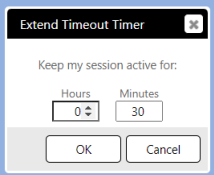
- Click OK to apply.
 Map Controls
Use the Pan and Zoom options in the Tools menu to navigate the map (refer to for more Tools Menu information).
In the top-right corner of the map, you’ll find the following map controls. Refer to the table below for explanations.
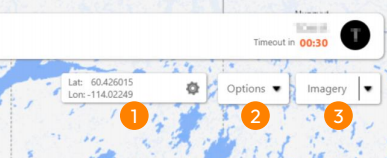
|
|
|
 Options Menu
 Imagery
 Note:
The map will update as you make selections. The speed at which the map is updated will depend on your internet connection and the amount of map data being viewed.
The following message will flash on the right-hand side until the map has fully loaded.
