Left-Hand Menu
Tools for navigation, drawing shape files, accessing custom lists, waypoints, and more
Tools Menu
Use the Tools menu to navigate the map.
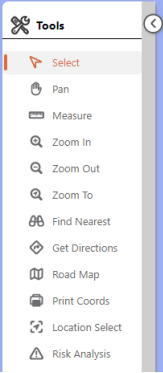
Select
Click to select individual objects on the
map. Click and drag to select multiple
objects. |
Find Nearest
Click to find map objects nearest to a
specified location. |
Pan
Click and drag to pan the map. |
Get Directions
Click to get directions and show the route
on the map. |
Measure
Click to open the Measure menu and
measure area, distance or view the
current coordinates. |
Road Map
Click to create a road map. |
Zoom In
Click to use the Zoom In tool. |
Print Coordinates
Click to view and print coordinates from
a point on the map. |
Zoom Out
Click to use the Zoom Out tool. |
Location Select
Click to select map objects by location. |
Zoom To
Click to zoom to an address or map
objects. |
Risk Analysis
Click to generate a Pipeline Risk Analysis. |
 Tip:
Tip:
Select the Pan tool, hold Shift and click and drag a box on the map to zoom to the area selected.
Back to Top
Connectivity Menu
Use the Connectivity menu to add and manage nodes and links.
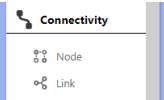
Node
Click to add, edit, or delete nodes.
|
Link
Click to add, edit, or delete links.
|
Back to Top
Objects Menu
Use the Objects menu to add supplementary objects to the map.
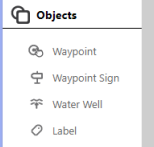
Waypoint
Click to add a waypoint.
|
Water Well
Click to add a water well.
|
Waypoint Sign
Click to add a waypoint sign.
|
Label
Click to add your own label to the map.
|
Back to Top
Custom Lists Menu
Use the Custom Lists menu to add selected objects to your custom lists.
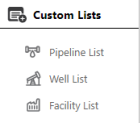
Pipeline List
Click to add selected Pipeline(s) to a custom Pipleline List
|
Facility List
Click to add the selected Facility(ies) to a custom Facility list.
|
Well List
Click to add the selected Well(s) to a custom Well List.
|
|
Back to Top
Buffer Menu
Use the Buffer tools to find and select objects within a certain distance of an object, pipeline, or point on the map.
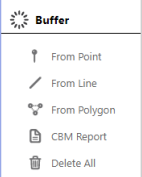
From Point
Click to find and select all objects within
a specific distance of an object (radius).
|
CBM Report
Click to create a well CBM report from
a point on the map or coordinates.
|
From Line
Click to find and select all objects within
a specific distance of a pipeline (entire
pipeline length).
|
Delete All
Click to delete all Buffers from the current map.
|
From Polygon
Click to find and select all objects within
a specific distance of a polygon on the
map (see Drawing Menu).
|
|
Tip:
Once you've made a selection using the From Point, From Line, or From Polygon tool, refer to Select Report to view or export object data.
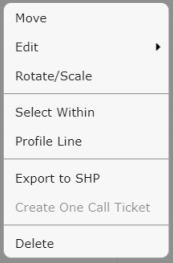
Right click a Buffer to modify it, select the objects within the Buffer (Select Within), or view the Profile Line of the Buffer:
Back to Top
Drawing Menu
Use the Drawing tools to add visual data to the map. A pop-up box is displayed when a Drawing tool is selected where you can modify the color or thickness, and select which labels are displayed on the map.
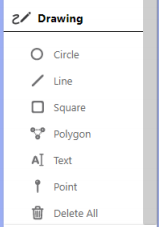
Circle
Click to draw a circle (from the center-point outwards).
|
Polygon
Click to draw irregular shapes (double click to end and close the shape).
|
Line
Click to draw a line (single click to continue line in another direction, double click for end point).
|
Text
Click to add a label to the map.
|
Square
Click to draw a square (from the top-left hand corner).
|
Delete All
Click to delete all drawings from the current map.
|
Tip:
Hold Ctrl while using a Drawing tool to snap to an object on the map.
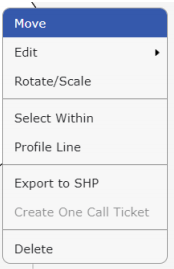
Right click a drawing or a label on the map to modify it, select the objects within a drawing (Select Within), or view the Profile Line of a drawing:
Tip:
After you have added drawings or labels to a map, you will likely want to save, share, or print it. Refer to Save, Share and Export Maps
Back to Top